Showing posts with label ASP.NET MVC. Show all posts

ASP.NET MVC – Flashback of Important Concepts

A decade ago, ASP.NET Web Forms was the flagship framework for designing and developing web apps using .NET.

Over the years, developers had been demanding the ability to develop Web applications using a model-view-controller architecture. To address these needs and to stay current with the web development standards, Scott Guthrie of Microsoft designed the first ASP.NET MVC framework in October 2007.

Since then, a lot has changed in the world of ASP.NET MVC, but a lot is still the same. Although ASP.NET Core is the recommended option to develop web applications, as a developer, one should be aware of some important concepts that shaped the current framework.

This article provides an overview of the ASP.NET MVC technology for those who are still working on it, and explains some important components along the way.

File Upload in ASP.NET Core

In one of the .NET Core trainings I was conducting recently, one of my students asked about uploading files using .NET Core application. Here's a solution. When we use ASP.NET MVC to upload a file, we use the HttpPostedFileBase class. This class is used to access the files uploaded by the client in an MVC application. In .NET Core, the IFromFile interface is used to represent a file that is sent with the HttpRequest. In this article we will use the IFromFile interface to upload the file. We will use Visual Studio 2017 and .NET Core 2.1. Information about the IFromFile interface can be read from this link.

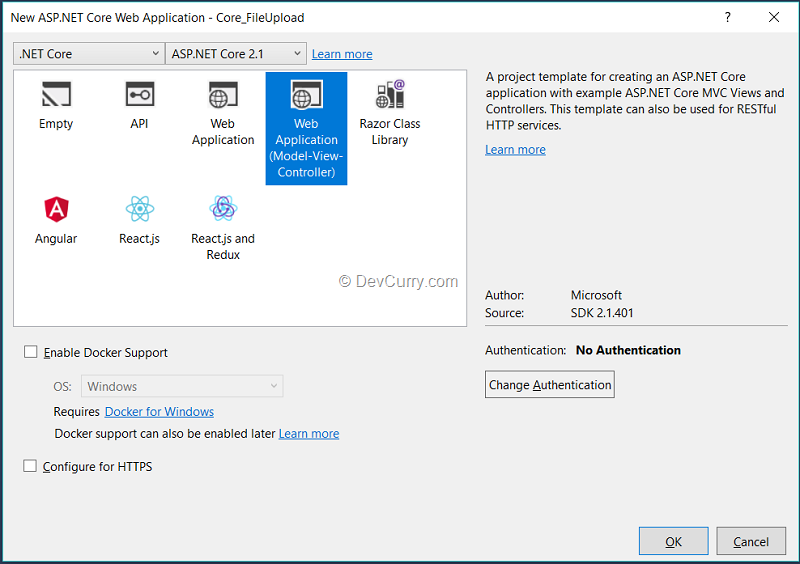
Step 1: Open Visual Studio 2017 and create a new ASP.NET Core Web Application. Name this application as Core_FileUpload. Select the MVC project with .NET Core and ASP.NET Core 2.1 version for the project as shown in the following image:


mvc-app[8]


Action Filters in ASP.NET MVC

Continuing with our MVC 101 series today we look at an important MVC feature, Filters. Filters in ASP.NET MVC are a way to apply cross-cutting logic at the controller level. Some examples of cross-cutting logic is Security and Logging.

Security is a cross cutting concern because, once enabled, we need to apply it for all incoming requests in the web Application. Imagine a world where you don’t have filters, in such case for every request that comes in, you Action method in controller will have to check if the user was Authorized to perform the action and view its result.

This not only violates single responsibility principle of the Action Method (it’s doing two things, evaluating security and computing the Action’s output) but is also an extremely verbose and repetitive work that we’ve to do irrespective of what the Action is supposed to do. Moreover, writing Authentication Code in action method cannot be guaranteed. There is no certainty that a developer may or may not miss out on implementing the code!

Getting Started with NUnit in ASP.NET MVC

Visual Studio 2012 comes with a perfectly capable Unit Testing system in MS Test. However if your team’s skills require you to use alternate Testing frameworks like NUnit, Visual Studio is game to play along. In this article, we’ll see the how we can setup NUnit to work with Visual Studio’s Test Explorer and run Unit tests in our project.

Setting up NUnit

There are two parts to NUnit setup for use in Visual Studio. First part is to install the framework, we can do this in two ways.

1. Download the 2.6.2 (latest at the time of writing) msi installer from http://www.nunit.org. Ensure Visual Studio is not running while the installer is running. This installs NUnit globally along with the NUnit test runner. However the test runner needs .NET 3.5 to run.

2. Another way to include NUnit in your project is to download it using the following Nuget Package Manager command

PM> install-package NUnit

Second part is to setup the NUnit Test Adapter so that Visual Studio recognizes the Test Cases in our project and allows us to Run them from the Test Explorer.

Using Custom Directive in AngularJS to create reusable JavaScript components for your ASP.NET MVC app

In our previous three articles on Angular JS, we have seen how we could get started by building a small Twitter Client. We have explored the view model, Modules and Services in Angular JS and in our last article saw how to post data using the $resource Service.

Today we’ll see how to use a feature called Directives in Angular JS. Directives allow you to encapsulate custom behavior in an HTML element, attribute, classes and even comments. For example, the ng-app attribute that we use to define the scope of our Angular App is in fact a Directive, because there are no HTML5 attributes by that name! It’s Angular who interprets the attribute at runtime.

Apart from helping add custom attributes, directives can also be used to create the server side equivalent of ‘tag-libraries’ on the client. Those familiar with WebForms or JSP development will remember you could create server side components with custom Tags like <asp:GridView>…</asp:GridView> where the GridView rendering logic was encapsulated in a server component. Well, Directives allow you build such components, but on the client.

In fact today we’ll define a ‘Retweet’ button on our Tweet Reader that will enable us to encapsulate the function in a custom directive.

Using jQuery Mobile in ASP.NET MVC

This article is from our ASP.NET MVC 101 Tutorial Series

ASP.NET MVC 4 introduced a Mobile Site template that leverages the jQuery Mobile to serve up views tailored for consumption on Mobile devices. Even though the latest ASP.NET site templates have responsive CSS, the mobile views aren’t particularly suited for data intensive views. It would be better if we had views dedicated to handle smaller mobile screens and be mindful of touch based navigation.

You can either create a brand new site specifically targeted for Mobile (if you are starting a green-field project) or you can add Mobile views to an existing MVC project with advanced features like view switching between Mobile and Desktop views.

Today, we are going to look at building a Mobile site ground up, so we’ll start with the mobile site template in Visual Studio

Using AngularJS Modules and Services Feature in an ASP.NET MVC application

In our previous post, Hello AngularJS – Building a Tweet Reader we saw how to create a simple ASP.NET MVC application using AngularJS. We saw how the $scope and $http objects were injected in our app by Angular. We also saw how to do Templating and DataBinding. Today we will learn a few more constructs like the Modules and Services.

As with our demos we’ll walk with a code sample to see how the AngularJS features are used.

The Sample AngularJS Application - Recap

We’ll continue where we left off with the previous ASP.NET MVC sample where we built a Twitter reader.

The ASP.NET MVC Controller

To quickly recap, we have an ASP.NET MVC application with an MVC Controller. The controller has the Index action method. Here the LinqToTwitter framework first checks if user is Authenticated, if not, it redirects to Twitter and gets user to Authenticate.

Using LogParser to Find Most Frequently Accessed Pages of an ASP.NET Website

Log parser is a powerful, versatile tool that a SQL-like query language to access a wide variety of text-based data sources such as log files, XML files and CSV files, as well as the Event Log, the Registry, binary files, and Active Directory. You can download LogParser here. The installer also contains samples and documentation about the different commands of Log Parser.

In this short article, we will use LogParser to parse the log file generated by IIS to find 10 most frequently accessed resource on your website. Once we have this information, we can fine tune these pages/resources to increase the overall performance of the site. The log file I am using here is from a live website and contains 3 days of data.

Step 1: Assuming your log file exists on your local machine, create an empty query file which will contain commands to access data from this log file. In this example, the query file is called top10.sql and the log file is called dnc.log. Both these files have been kept in the D: Drive of my machine.

Angular JS: Routing to a SPA mode using ASP.NET MVC

In the beginning of the series I had mentioned that Single Page applications (SPA) were gaining popularity and that some of the ready SPA templates that come with ASP.NET MVC are rather opinionated, giving them a steep learning curve. We started with basics of Angular JS and slowly inched up learning bits of the framework. Till the third article we were mostly doing known things (data binding, templating, posting data) that other drop in libraries could do as well). The fourth article showed us how to do UI composition in form of directives and the seeds of a Single Page App were sown.

Today, we will look at routing (on the client side) and take the next step in realizing how a full blown Single Page Application framework functions.

AngularJS – Post data using the $resource Service in an ASP.NET MVC app

Last time we looked at how we could use the $resource service to make our code more compact when making HTTP calls. Today we will see how to post data to a server using the $resource service.

We’ll continue using the code from the previous article. So you can download the zip from here or fork it from Github.

Posting Data

In our previous article we re-organized our application to use the $resource service. However we were only using the query function. As we know the resource function can also do GET, POST, PUT etc. Following is the map of actions to the HTTP verbs

{ 'get':    {method:'GET'},
  'save':   {method:'POST'},
  'query':  {method:'GET', isArray:true},
  'remove': {method:'DELETE'},
  'delete': {method:'DELETE'} };


(Source: Angular JS Documentation)

ASP.NET MVC - Using Resource Files to Manage String Constants

This article is from our ASP.NET MVC 101 Tutorial Series

Continuing with the MVC 101 series, today we explore how to save strings in Resource files instead of constants spread out all over the application or worse, hard coded in the source itself.
Mind you, we are not looking at cultures and Internationalization today.

It is very easy to start working on a project and continue adding string in a random, unstructured and adhoc mixture of inline strings and string constants. However, as soon as the marketing team starts to demo the product, you get one change request after the other to update the text/message and error notifications. This is when things go south and you wish you had a central place to store all your string constants.

Hello Resource Files!

Allowing dots in ASP.NET MVC paths

URLs with a dot(.) in ASP.NET MVC generate a 404. I have seen many solutions on the web to solve this issue. Some of them are as follows:

1. Add the following handler to your web.config

<system.webServer>
<handlers>
<add name="ApiURIs-ISAPI-Integrated-4.0_2"
path="/products/*"
verb="GET,HEAD,POST,DEBUG,PUT,DELETE,PATCH,OPTIONS"
type="System.Web.Handlers.TransferRequestHandler"
preCondition="integratedMode,runtimeVersionv4.0" />
</handlers>
</system.webServer>


Here I am assuming that the url’s that contains dots in your case is starting from /products/urlwith.adot. A drawback is as soon as you set path to [path="*"] all requests to static files such as .pdf, .js, .css etc fails.

Building a Knockout.js based client for Web API services in an ASP.NET MVC app

ASP.NET MVC is now a popular web development platform and often first time users have questions regards to implementation of Data Bound behavior in MVC. This is understandably because most Customers at some point have used ASP.NET Web Forms earlier and are comfortable with the event driven model that it provides.

A common question is how to create an editable list of data allowing users to Edit and Save existing data. The default MVC scaffolding in Visual Studio provides us with a way to implement this where Create/Edit/Delete are implemented on the server side and each action has a separate UI. Today we will see how we can implement it using jQuery and a lightweight client side library knockout.js (also referred to as KO).

On the server, we will use ASP.NET Web API to expose the database services that will be accessed by JavaScript. Needless to say we will use AJAX to communicate with the backend Services.

For any ‘List’ of data there is a need for implementing some kind of template or repeater behavior so that we can define the UI for one row of data and the library/framework takes that template and repeats it for the entire list. We know how to do this in ASP.NET MVC using Razor syntax. Today we’ll see how implement the repeater UI using KO’s templating engine. We will also see how we can define separate templates for Display and Edit modes.

Using OutputCache Action Filter in ASP.NET MVC 4.0

If you have used the output caching facility from the core ASP.NET platform, you are in familiar grounds. The OutputCache filter in ASP.NET MVC uses the same output caching facility and cache’s the output from an action method. Since the output is cached, subsequent request to the same URL are served using the same cache. Needless to say, this offers performance benefits especially for requests where database queries are involved.

In order to make output caching as easy as possible, the ASP.NET MVC Framework
provides OutputCacheAttribute which can simply be applied to any Controller action or even to the entire Controller class. By default, the content is cached with an absolute expiration time of 60 seconds. You can change this duration by modifying properties of the [OutputCache] attribute such as the Duration. However when memory resource become low, there is no guarantee that content will be cached for the amount of time that you specify.

Enough theory, let’s explore this filter with a working example

Angular JS – Making Directives self-contained in our ASP.NET MVC Twitter App

This article is sixth in the series, I strongly recommend you go through the previous five if you are new to AngularJS:

Part 1 - Hello AngularJS – Building a Tweet Reader

Part 2 - Using AngularJS Modules and Services Feature in an ASP.NET MVC application

Part 3 - AngularJS – Post data using the $resource Service in an ASP.NET MVC app

Part 4 - Using Custom Directive in AngularJS to create reusable JavaScript components for your ASP.NET MVC app

Part 5: Angular JS: Routing to a SPA mode using ASP.NET MVC

Today we will revisit Directives in an attempt to make them more self-contained and re-usable. As with the previous articles, we start off where we left off so please download the code of Part 5 from Github and follow along.

Using jQuery and Moment.js in ASP.NET MVC to do Custom Unobtrusive Date Comparison and Validation

In fifth issue of DNC Magazine Sumit had demonstrated how to make a ‘dynamic max length’ validator that could unobtrusively validate max-length when the target length was set at run time. We’ll use the same techniques to build an Unobtrusive Date Comparison Validator that will enforce the rule that given two dates, one date should be greater than or lesser than or equal to another date in the same form.

We will use the jQuery UI Date Picker to provide a nice calendar for picking the dates and as a final twist in the tale, we’ll use a Custom Date format in the Picker. There is a nasty bug in jQuery UI’s date picker, so we’ll see how we can fix that as well using another JavaScript library Moment.js.
Date formatting is often a major pain. Throw in the weird Date format that MVC returns and you will end up tearing out your hair in frustration with Date.Parse. Enter Moment.JS, a neat little Open Source, JavaScript library, which takes the pain of Date Formatting and Conversion (among other things) away!

The ASP.NET MVC Demo Application

We have a Basic ASP.NET MVC Application with the latest jQuery, jQuery UI and Unobtrusive Validation libraries installed from Nuget. It has a single HomeController that has the Index Action Method. We have a corresponding view in the Home\Index.cshtml.

Using ASP.NET MVC 4 Mobile Template to build an application using Web API, jQuery and jQuery Mobile

In the last few years, the explosion of powerful Mobile devices combined with their capable operation systems has resulted in a Mobile computing wave that is promising to redefine how we use portable computing devices. Fact is most day-to-day Web 2.0 activities like Social Media updates have moved to mobile platforms in a big way.

As a result of this new wave, Application development targeting mobile platforms is increasingly become the primary targets instead of being add-ons to existing web/mobile presence.
With current device capabilities mobile applications can vary in features, ranging from personal applications like managing SMS/Text, Contacts, Notes, Mails, etc. to Line of Business (LOB) applications like Banking, Financial Management, Order Management etc.

While developing for Mobile platforms is a natural choice, development platform is often conflicted because each mobile platform has its unique set of Tools/IDEs and Development languages. However, one middle path is using HTML5 based JavaScript libraries to build targeted Mobile experiences. ASP.NET MVC with its built in Mobile Development support provides a nice starting point using the jQuery Mobile framework.

Hello AngularJS – Building a Tweet Reader

Single Page applications using client side JavaScript frameworks are getting popular and with the latest Web Update for Visual Studio 2012, quite a few SPA templates have been released by Microsoft and prominent Community members like John Papa. We have covered these templates in the past over here.

However these SPA templates are rather opinionated on the usage of the underlying frameworks and may not be the best starting point if we are trying to understand the framework under the hood. So today, we will look at AngularJS in a plain vanilla ASP.NET MVC app. We’ll start with an empty project and go ground up.

What is Angular JS?

Angular JS is (another) client side MVC framework in JavaScript. It was created by a group of developers at Google when they realized that their project (Feedback) had become too unwieldy and needed a cleanup. The three weeks effort at that cleanup lay seed to what we now know as AngularJS. Of course AngularJS was thrown open to community and since then had garnered a pretty vibrant community and a boat load of features.

Customizing Routes in ASP.NET MVC – Custom RouteBase implementations

MVC Routing is pretty flexible in itself and as we recently saw in Friendly URLs in ASP.NET Web Forms , we can mix and match old web forms style URLs with modern friendly URLs even keeping both side by side. However, there are often quirks of implementation that need us to dig a little deeper for a solution.

A quick search on the interwebs reveals the fact that people have very specific reasons from MultiTenancy to Custom paths not possible with the out of the box routing mechanisms.
Today we’ll pick an easy and superfluous one to demonstrate how to do a custom RouteBase implementation. We will see how we can re-direct non-standard URLs like html/asp and aspx files to a cleaner ‘Friendly Url’ format.

The Requirement

Handle extensions like html/pdf and redirect to Friendly URLs that ‘look like’ MVC generated URLs.

Async Await and ASP.NET MVC

.NET 4.5 introduced the Async and Await keywords to make Task based asynchronous programming more linear and easier to understand. Today we take a quick look at doing async actions in ASP.NET MVC and how these can potentially end up improving the server side performance of your MVC Application.

Benefits of Asynchronous Model

As we know, ASP.NET has a max number of threads that it can pick up from its thread pool. When all the threads are busy, a new request is queued and has to wait till a thread is available to service the request. Thus in ASP.NET, one surefire way to gain better scale is to ensure that your requests don’t wait on threads unnecessarily. If you are thinking sure enough I’ll fire off a background thread and be done with it, you are wrong, don’t do it. Background thread is still a ‘thread’ and you are not gaining anything; uncontrolled background thread creation will only exhaust your thread pool faster. Key to ASP.NET scaling is letting go of a thread as-soon-as-possible.